Member app · How-to
Set up your Cadence app
Three quick settings make the app work at its best: notifications, location and NFC. Each takes a few seconds, and you only do it once. (Haven't installed the app yet? Start here.)
Notifications
Polls · events · club newsOpen the app from its home-screen icon, tap Enable notifications on the banner the app shows you, then allow it when your phone asks. On iPhone, this only works from the installed icon — never from a regular Safari tab.
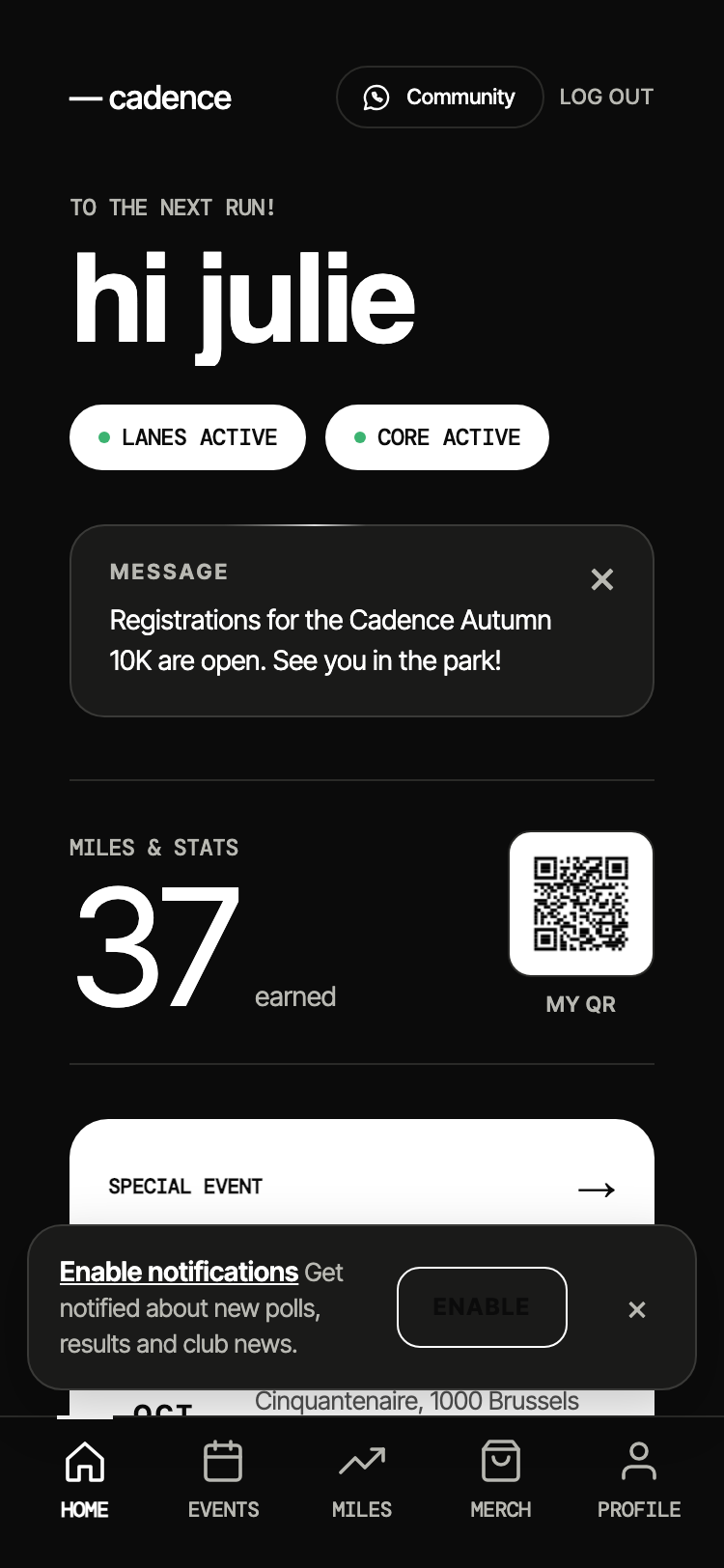
Tap Enable notifications in the app, then Allow on the iOS pop-up.
Same idea: tap Enable notifications in the app, then Allow on Android's pop-up.
Location
Needed for NFC check-inChecking in on the NFC sticker uses your position to confirm you're at the run — and both iPhone and Android require your permission before the app can read it. The first time you check in, your phone will ask: choose Allow.
Tap Allow the first time you check in. If you said no by mistake, just tap the sticker again — iPhone will re-ask.
Choose While using the app (with Only this time, you'll simply be asked again at each check-in). Make sure the phone's location is switched on too.
Safari Websites
Then location is switched off for your browser itself, and NFC check-in can't work. Go to Settings → Privacy & Security → Location Services, tap Safari Websites (or the browser you use), and pick While Using the App.
NFC
The tap-to-check-in stickerOn Tuesday, Friday and Sunday runs, you check in by holding your phone near the Cadence sticker. iPhone needs no setting at all — Android just needs NFC switched on.
Hold the top of your iPhone near the sticker; a banner appears — tap it and you're checked in.
Connection preferences
In Settings, search for “NFC” and switch it on (the exact menu varies by phone brand). Then tap the sticker with the back of your phone.
Good to know
Said “Don't Allow” by mistake?
No stress.
Notifications — iPhone: Settings → Notifications → Cadence and switch them on; Android: press and hold the Cadence icon → App info → Notifications.
Location — iPhone: tap the sticker again at the next run, it will ask again; Android: press and hold the icon → App info → Permissions → Location.
Notifications only work from the installed app (iPhone)
If Cadence lives in a regular Safari tab, iPhone won't deliver any notifications. Install it on your home screen first — the whole how-to is at cadence-athletics.com/install-app — and always open it from its icon.
Where the NFC antenna is
On iPhone, it's at the top edge of the phone — tap the sticker with the top. On Android, it's usually in the middle of the back — tap with the back of the phone. A thick case can weaken the signal; hold it close for a second.
Really struggling? Show your QR to a pacer
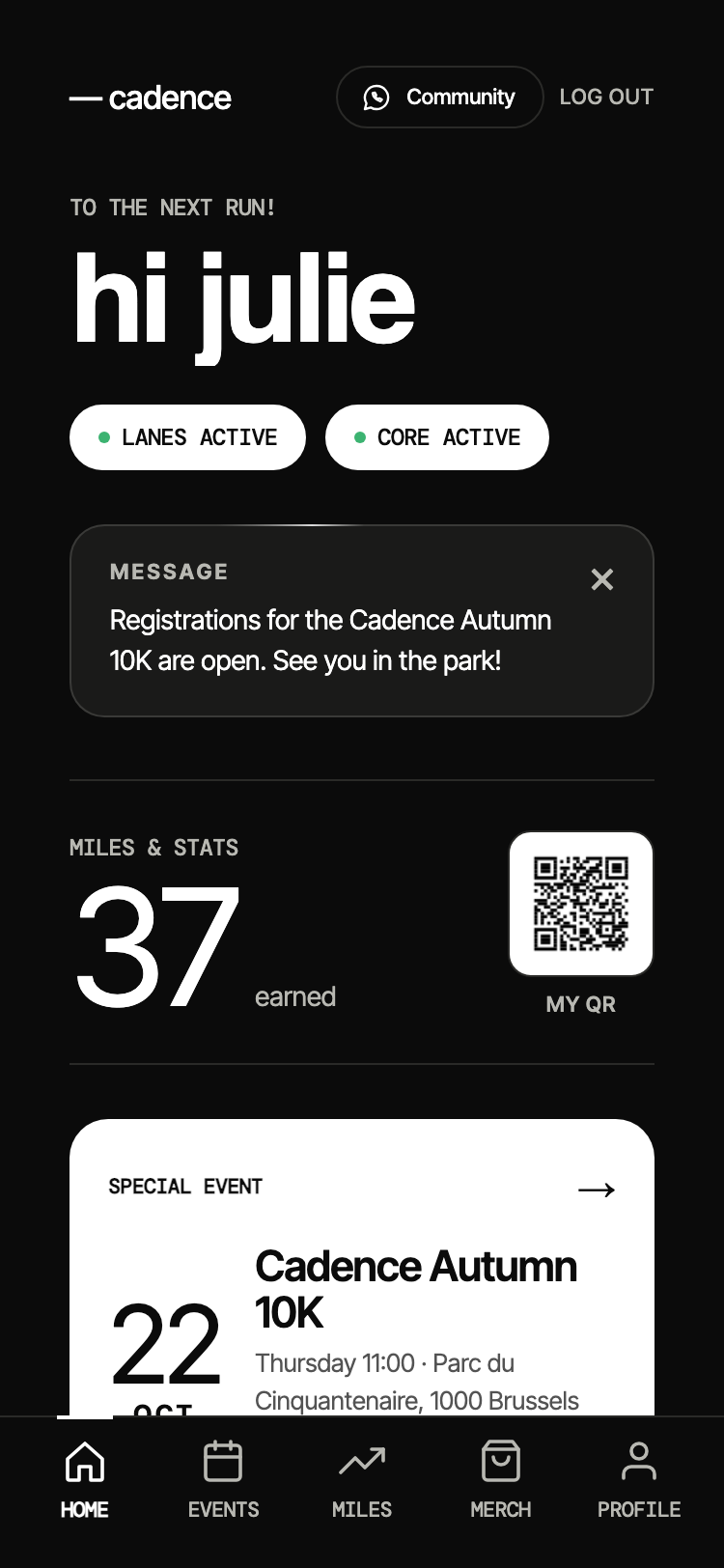
There's always a plan B. Your personal QR code sits right on the app's home screen, next to your Miles (“MY QR” — tap it to enlarge). Show it to any pacer and they'll scan it with their phone: same check-in, same Miles, no NFC needed.
Your privacy
What happens with your position and your notification data is covered in our privacy policy.