Member app · How-to
Install the Cadence app on your phone
Cadence is a web app: you won't find it in the App Store or Play Store, and there's nothing to download. You install it straight from your browser, in about 30 seconds, from app.cadence-athletics.com
iPhone
Using SafariThese steps use Safari, the browser that comes with every iPhone. If you normally use Chrome on your iPhone, see “Good to know” below.
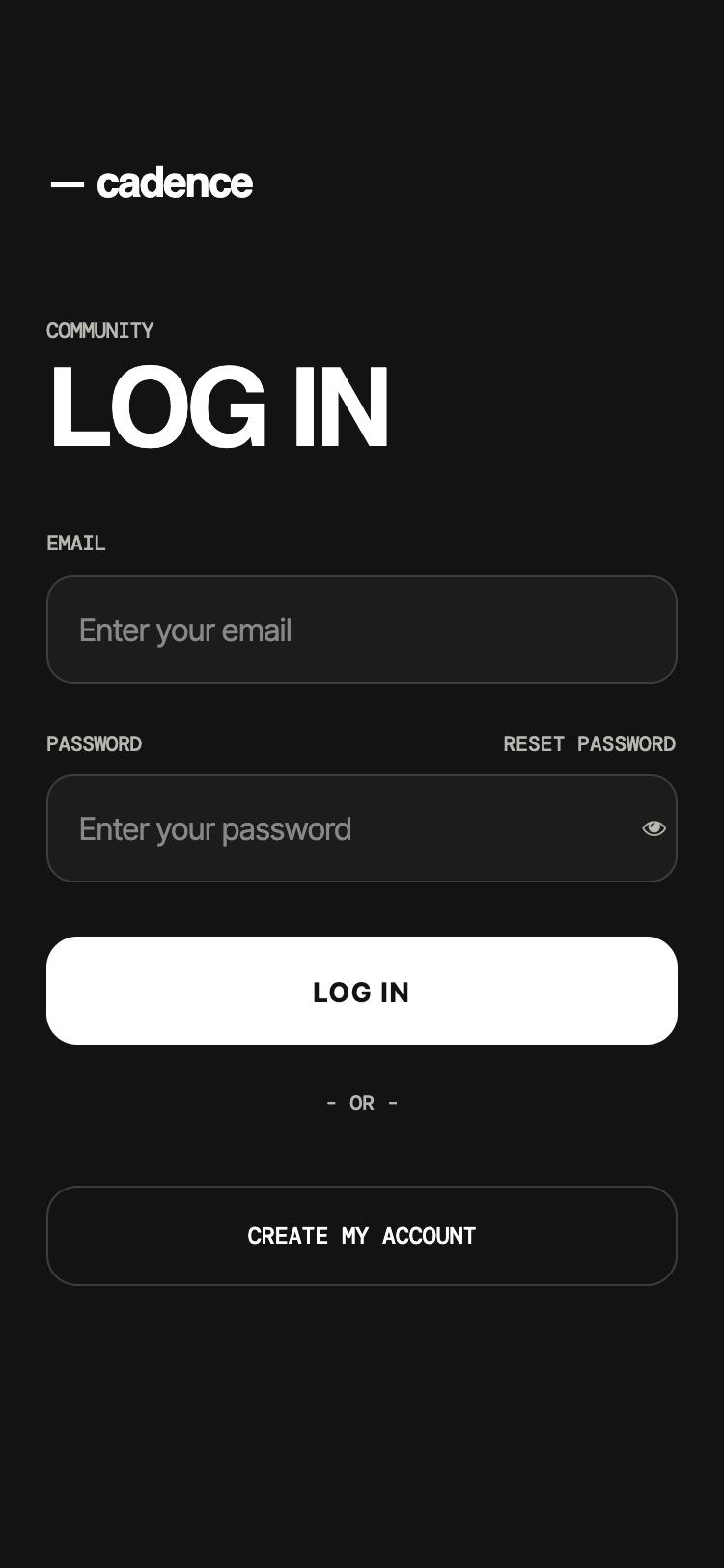
Open Safari and go to app.cadence-athletics.com. Log in if you aren't already.
Tap the Share button — the square with an arrow pointing up, at the bottom of the screen.
Scroll down the list and tap Add to Home Screen.
Tap Add in the top-right corner.
Done! Cadence is now on your home screen. From now on, always open the app from this icon.
Android
Using ChromeThese steps use Chrome, the browser that comes with most Android phones. Samsung Internet and other browsers have a very similar option in their menu.
Open Chrome and go to app.cadence-athletics.com. Log in if you aren't already.
Tap the three-dot menu in the top-right corner.
Tap Add to Home screen. On some phones it says Install app instead.
Tap Install (or Add) to confirm.
Done! Cadence is now on your home screen. From now on, always open the app from this icon.
Good to know
Why isn't it in the App Store or Play Store?
Cadence is a web app. It installs straight from the browser — nothing to download, and it updates itself automatically, so you always have the latest version.
Already added it a while ago, but it still opens like a website?
If your Cadence icon opens with the browser's address bar still visible, it was added from an older version of the app. Press and hold the old icon, remove it, then follow the steps above again from app.cadence-athletics.com. The new icon will open full-screen like a real app.
Turn on notifications
Open the app from its home-screen icon and allow notifications when the app asks. On iPhone, notifications only work from the installed icon — never from a regular Safari tab.
Using Chrome on an iPhone?
That works too: tap the Share icon at the top of the screen (next to the address bar), then Add to Home Screen. Your iPhone needs iOS 16.4 or newer.
Asked to log in again?
The first time you open the app from its new icon, you may need to log in once more. After that, you'll stay logged in.